Create and manage lists
Step 1: Create a List
There are 2 ways to create a list:
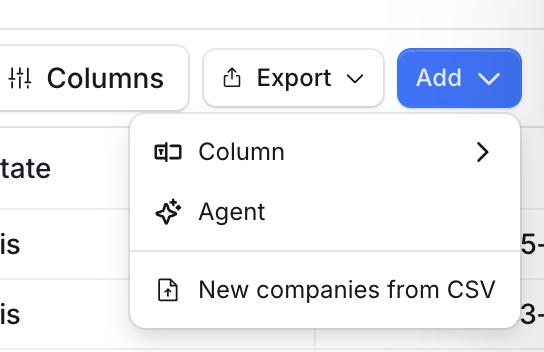
Export to a list from prospect or a set of records OR
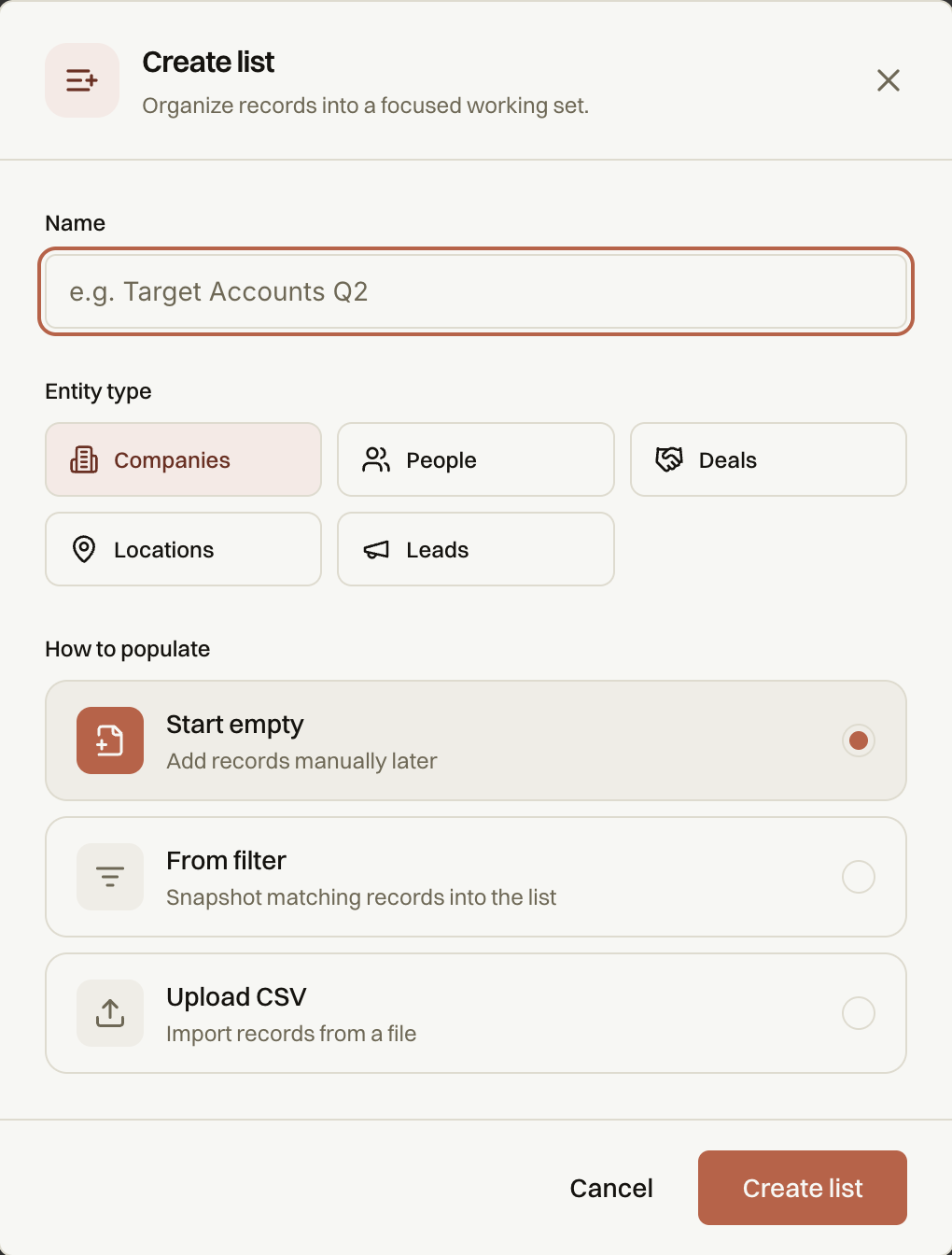
Navigate to 'Lists'→ Click the plus icon to create a new list.
Name your list and confirm the creation.
Choose to start from a filter, an empty list, or upload a CSV.
Empty — Start blank, add entities manually. Best for hand-picked accounts.
From a filter — Run a FISOQ filter on a universe, then snapshot the current results into a list. This freezes exactly who matched right now — new entities that match the filter later won't be added automatically.
From a CSV upload — Upload a file, map its columns to entity fields, and the rows become a new list. Large files run through a background pipeline so they don't block the UI.
Click 'Create List' to finalize the list.
Step 2: Manage Lists
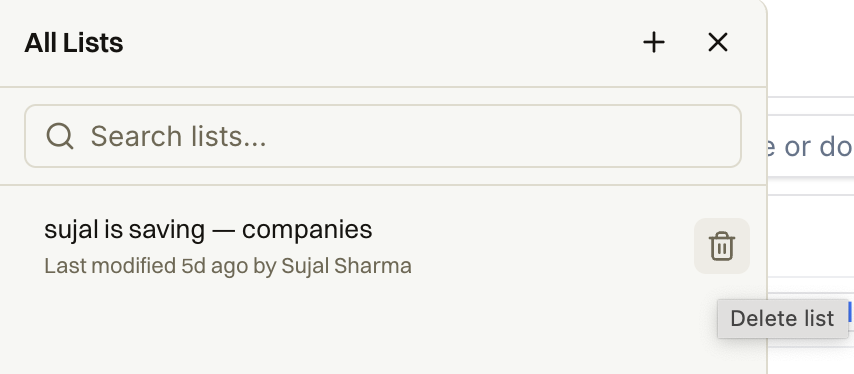
View all created lists in the left sidebar.
Option to delete a list is available.
Remove from List- select one or more records and use this bulk action to take them off the List. The records themselves stay in your Universe untouched.
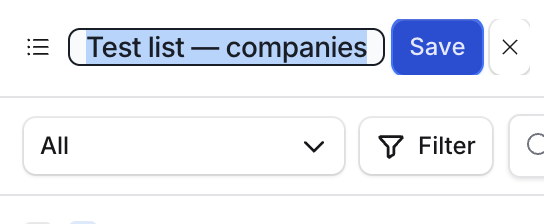
Rename- click the list title in the header to rename it inline.
Other bulk actions like enrich and export work exactly as they do in Universe.